Blender - Exporting for Unreal (FBX)
This guide goes over how to export characters from Blender for Unreal (in FBX format).
What to Export
When exporting for a game engine like Unreal, it’s highly recommended to keep keep your character and any animations in separate fbx exports.
It is possible for one FBX file to contain meshes, skeletons, and animations all in one, but this is difficult to work with. It is much easier to iterate on your character and animations in Unreal when they are all in separate files. That way, you can re-import your character without affecting your animations, re-import 1 animation you modify, or add 1 new animation without bundling a bunch of other animations together.
Character FBX
Your character FBX export should include:
- The Mesh
- The Armature
Animation FBX(s)
An animation FBX export should include:
- The Armature
Export With the PROTO Game Asset Tools add-on
Blender's default FBX Exporter has problems with Unreal. It is highly recommended to use this add-on
Install the Add-On
Install the PROTO Game Asset Tools add-on. This add-on is made by me, and is designed for Unreal exports.

PROTO Game Asset Tools (for Blender)
protowlf.com
The add-on’s site has more information on how to install if you need it.
Find the Game Asset Tools panel
On the right side of the viewport, find the Game Asset Tools panel.
You may have to expand the right-side panel.
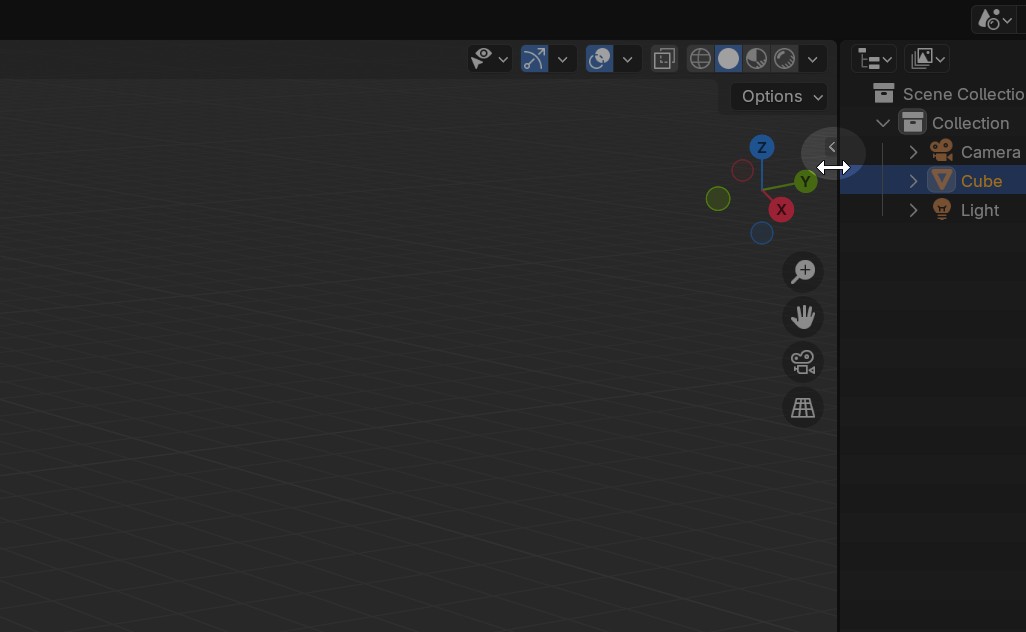
You can also press 'N' to toggle the right-side panel.
Export Your Character Model
Use the Game Asset Tools panel to configure your export.
Note that there are settings presets for different game engines. Select the Unreal preset before exporting.
Next Steps
For help importing your character into Unreal, see this page:

Importing Models
Tips on importing models into Unreal